DacTasbih for iPhone and Apple Watch
DacTasbih is a simple dhikr counter with Long Dhikr, Tasbih of Fatimah, learning text,
focus mode, reminders, history, and Apple Watch sync.
The current beta includes the new iPhone experience, Watch synchronization, guided Tasbih of Fatimah,
daily reminders, and improved controls across both devices.
These updates are currently in beta testing while awaiting Apple approval. Please test the app carefully and report any issues.
On This Page
1
Install the Beta
Download TestFlight
Open the DacTasbih beta invitation link
Tap Accept , then tap Install .
Open DacTasbih on your iPhone.
Open the Watch app on your iPhone and install DacTasbih if it does not install automatically.
Open DacTasbih once on both devices.
2
Features to Test
1
Start a Long Dhikr
Use Long Dhikr for open-ended counting.
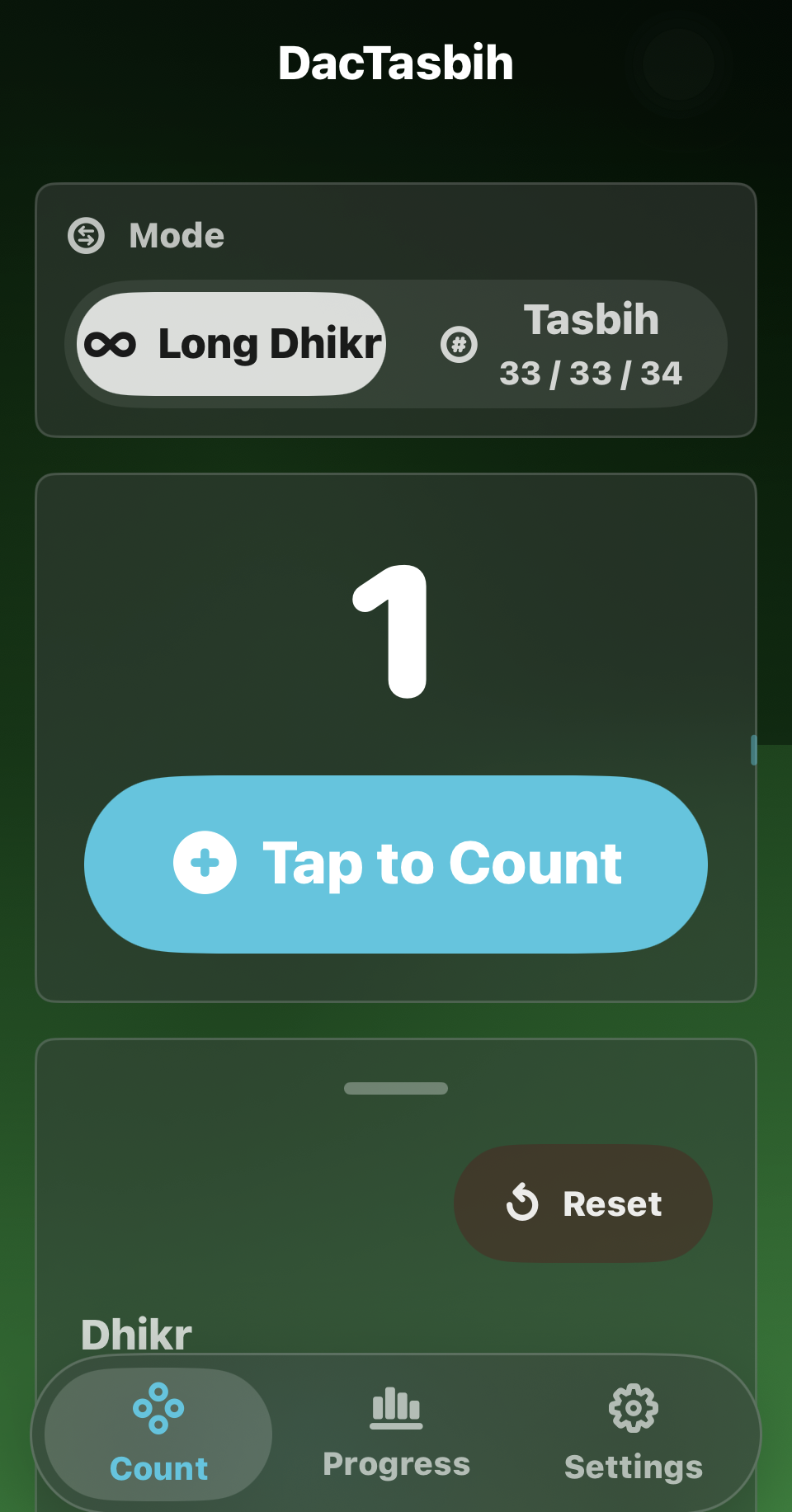
Select Long Dhikr .
Choose a dhikr name.
Tap Tap to Count .
Make sure the total increases by one.
Expected: The counter increases and keeps your selected dhikr.
Current iPhone home screen. Select Long Dhikr, then tap the large blue button to begin counting.
2
Use Focus Mode
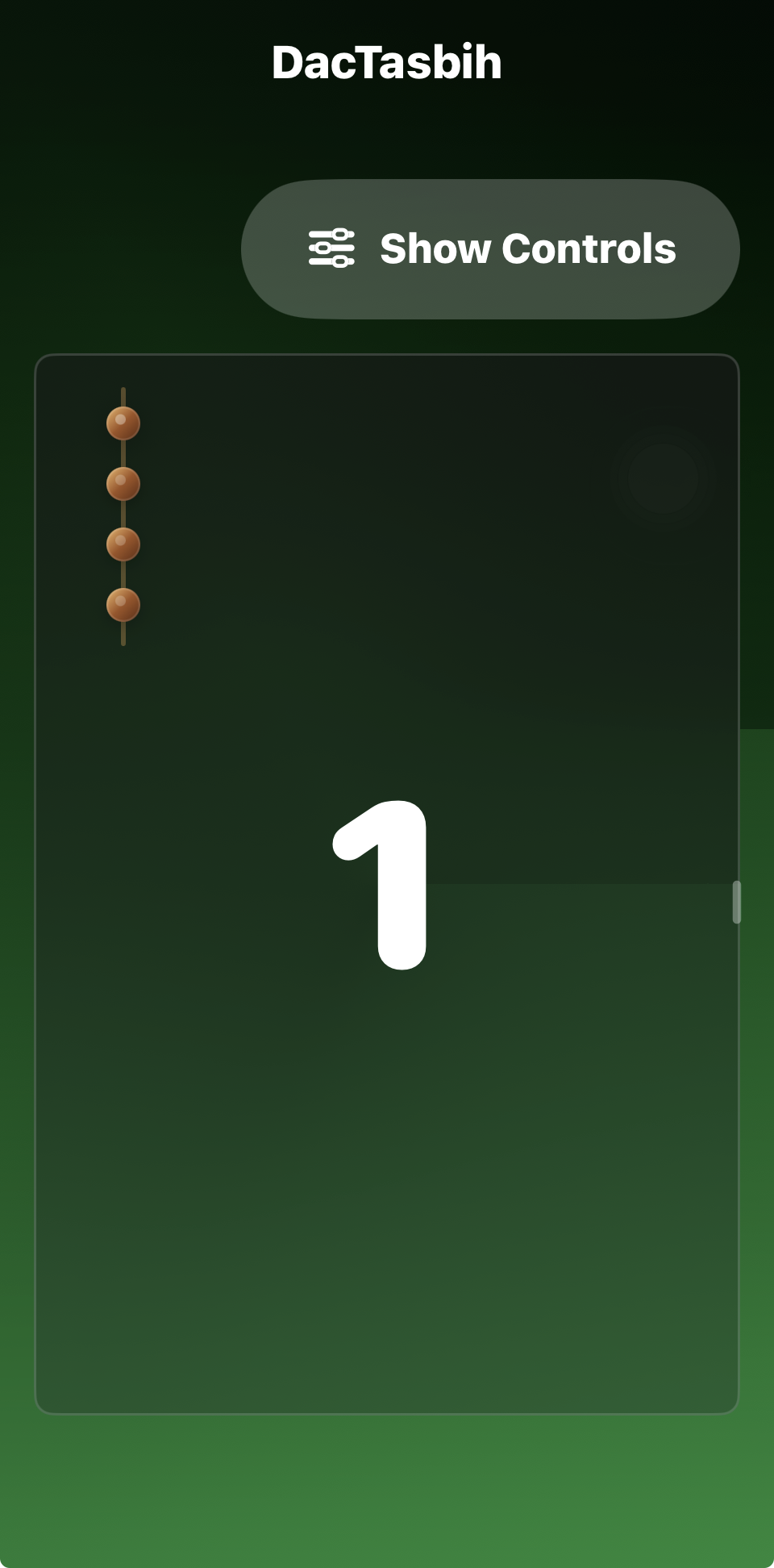
Focus mode hides extra controls so the full card is easy to tap.
Start counting.
Tap the large card several times.
Tap Show Controls when you want the menus back.
Expected: Every tap counts and Show Controls returns the main controls.
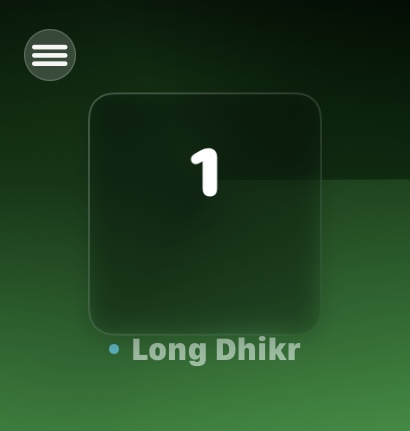
Current Long Dhikr focus mode. Tap anywhere inside the large counter card to continue counting.
3
Show Dhikr Learning Text
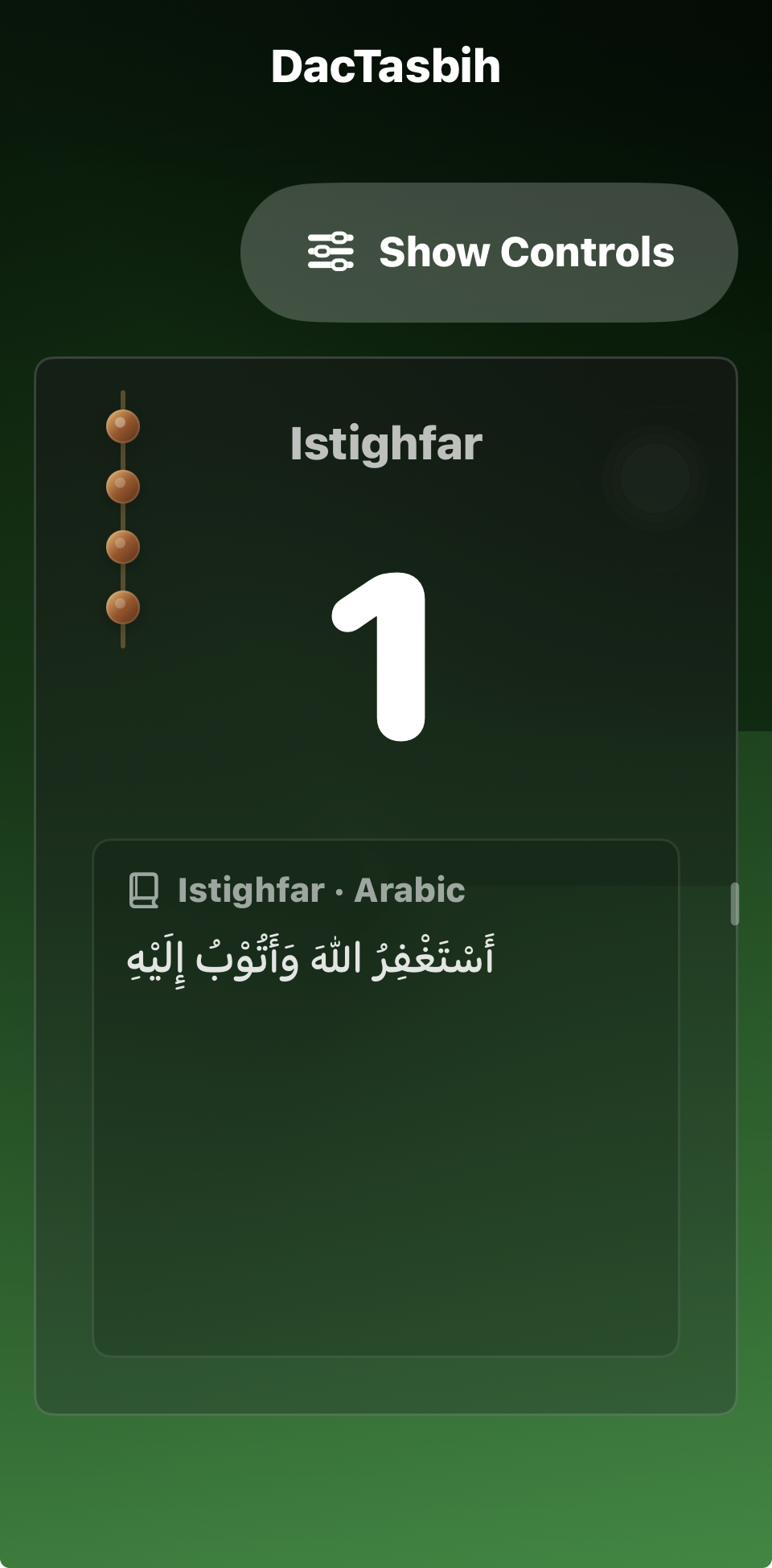
Predefined dhikr can display Arabic, transliteration, or translation while counting.
Choose a predefined dhikr such as Istighfar.
Turn on Show Dhikr Text .
Select Arabic, Transliteration, or Translation.
Start counting to open focus mode.
Expected: The selected text appears under the count and can be scrolled.
Learning mode displays the chosen Arabic, transliteration, or translation text inside the focused counter.
4
Complete Tasbih of Fatimah
The guided mode follows Tasbih 33, Tahmid 33, and Takbir 34.
Select Tasbih .
Count to 33 to move to Tahmid.
Count another 33 to move to Takbir.
Complete the final 34 counts.
Expected: The stages change automatically and the completed session totals 100.
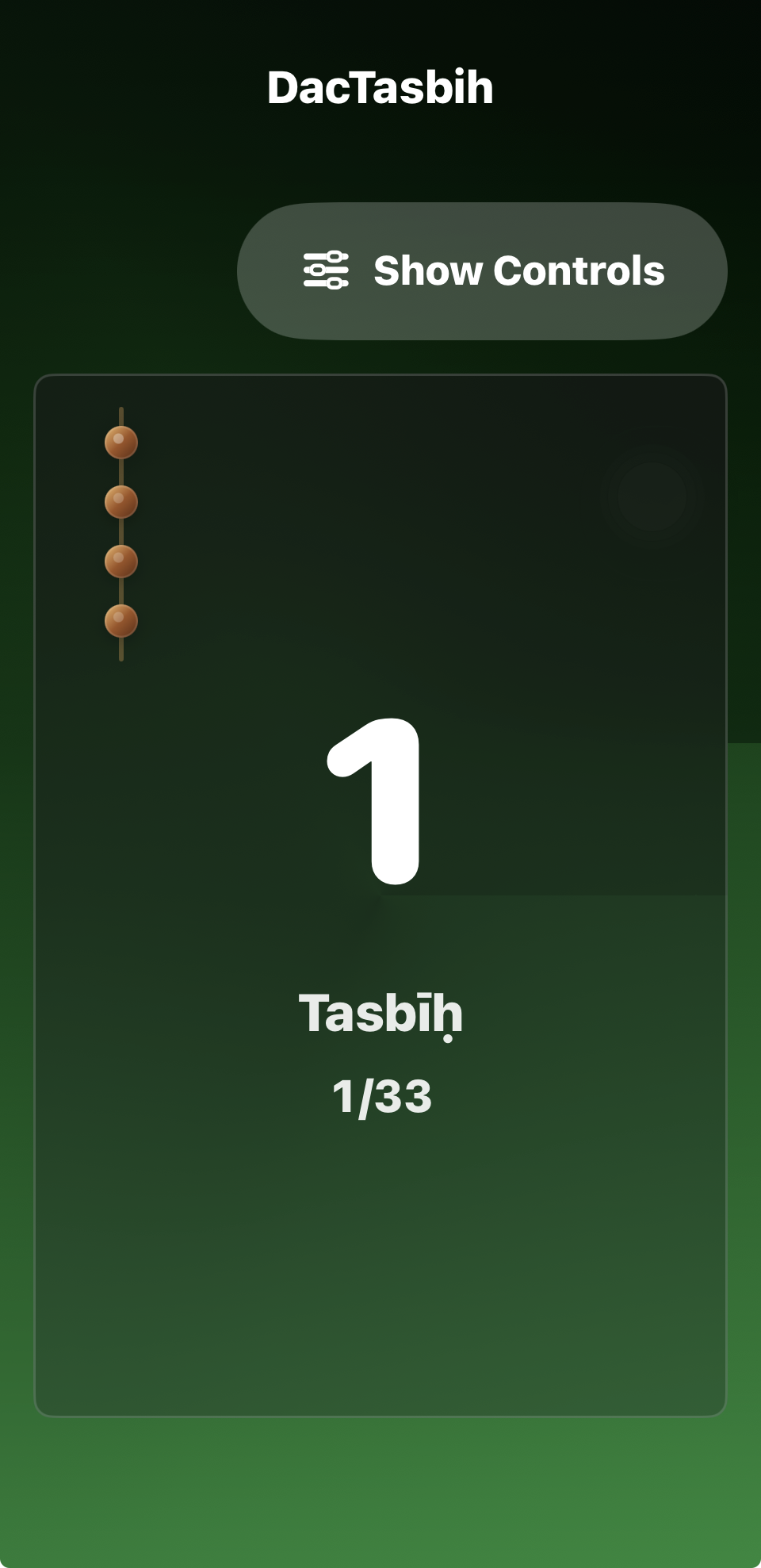
The focused screen identifies the current stage and shows its progress, beginning with Tasbih 1/33.
5
Count on Apple Watch
The Watch app supports Long Dhikr and Tasbih of Fatimah.
Tap the Watch screen once.
Rotate the Digital Crown.
Drag across the screen.
Open the menu to change modes or open Settings.
Expected: Tap, Crown, and drag increase the active counter.
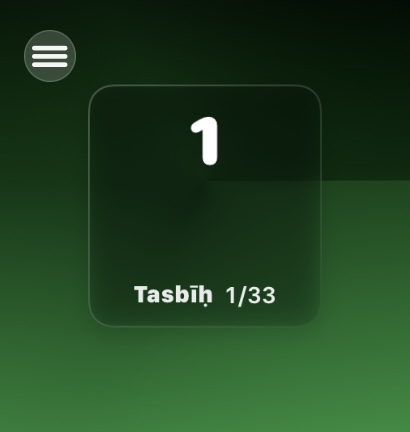
Current Apple Watch screens for Long Dhikr and Tasbih of Fatimah.
6
Check iPhone and Watch Sync
Count several times on iPhone.
Open the Watch app and wait briefly.
Count once on Watch.
Return to iPhone and compare the totals.
Expected: Both devices show the same mode, session name, and total.
Use the current iPhone and Watch counters to confirm that mode and count changes reach both devices.
7
Test Settings
Open Settings from the bottom navigation.
Change the Focus Mode controls-return time.
Test Auto Count with a short interval.
Change the background and feedback mode.
Set a small target and count until the alert appears.
Expected: Settings remain selected after closing and reopening the app.
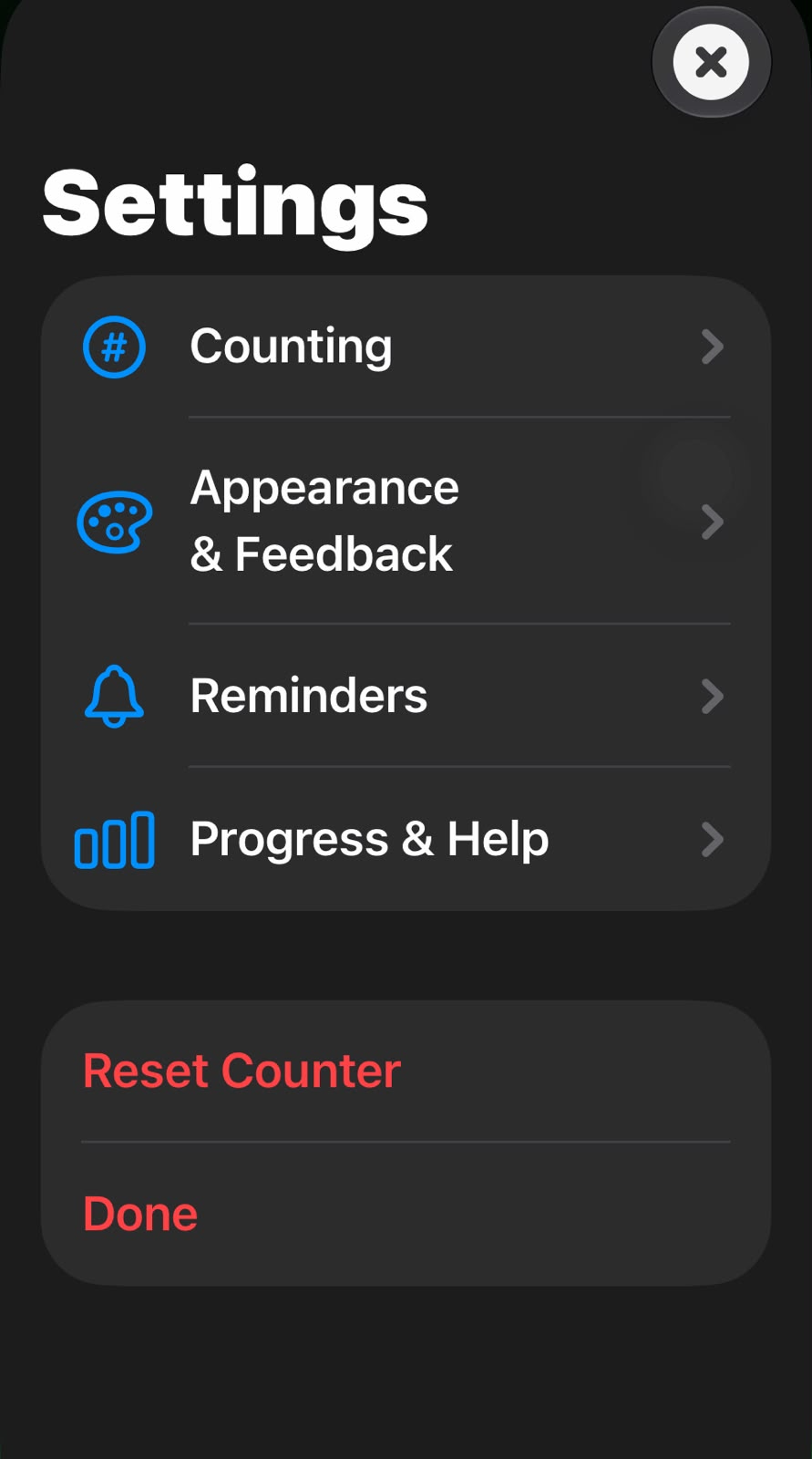
The current Settings screen provides Auto Count, controls-return timing, background selection, and feedback options.
8
Check Phone and iPad Layouts
Open DacTasbih on an iPhone in portrait orientation.
Confirm Count, Progress, and Settings are reachable from the bottom navigation.
Open the app on iPad or use a wide landscape window.
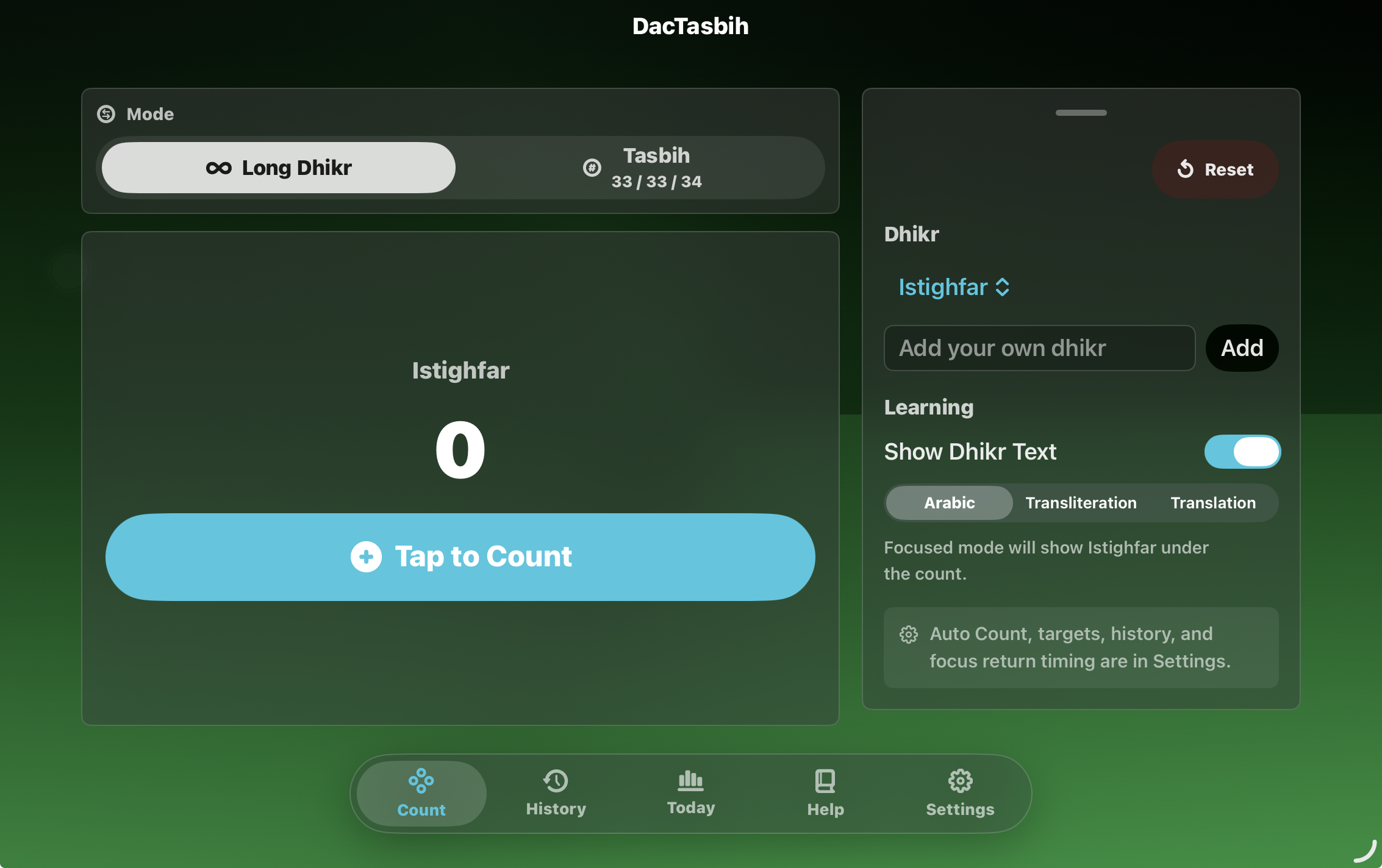
Confirm the counter remains on the left and the session controls appear on the right.
Expected: Important controls remain readable and usable without overlapping or being cut off.
The wide layout places counting and session controls side by side while retaining the full bottom navigation.
9
Test Reset and Saved Progress
Choose a named Long Dhikr and count several times.
Tap Reset .
Choose Keep Counting first and confirm the total remains.
Open Reset again and confirm the reset.
Open Progress → History and verify the completed session was saved.
Expected: Canceling preserves the total. Confirming reset clears the visible counter and saves a nonzero Long Dhikr session.
Use the Reset button above the Dhikr controls to finish or clear the current session.
3
Additional Current Features
These features are part of the current beta but do not yet have a matching screenshot in the raw image set.
History: Finish or reset a nonzero Long Dhikr, open Progress → History, and confirm the name, total, and date are correct.Resume From History: Select a saved Long Dhikr and confirm its name and total return to the counter.Daily Summary: Open Progress → Today and confirm completed sessions are included in the daily and monthly totals.Target: Enable a small Long Dhikr target in Settings and confirm a Target Reached alert appears once.Daily Reminder: Select a time in Settings, allow notifications, and confirm the reminder can be updated and turned off.Custom Dhikr: Add a unique name, count with it, and confirm the name synchronizes to Apple Watch.
4
Report a Problem
Please include the device, iOS or watchOS version, the feature being tested, the steps that caused the problem, and a screenshot when possible.
Hardware check: Haptics, sound, notification delivery, and background sync should also be tested on a physical iPhone and Apple Watch.